Convert your CSV file into a clean Excel file
Steps on how to convert the CSV files you exported to Excel files
Written By Olivier Verdin
Last updated 3 months ago
As you may have noticed, the data is exported from your account in CSV files. The files are formatted and structured in a standard way to make them compatible with any BI tool.
If you wish to open the files in Excel, you first need to select the right text encoding when opening the CSV file in Excel. Our files are encoded as UTF-8. Excel notoriously gives bad defaults for UTF-8 encoding which can result in certain characters appearing as special characters.
The data in a CSV file is separated by commas. To split the data into columns within an Excel file there are two ways to proceed:
Option 1 - Split Data into columns
Open the CSV file in Excel. The data will appear in one column, separated by commas.
Select the first column where the data is
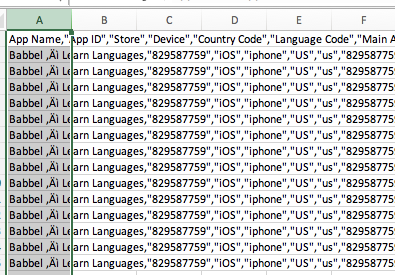
3. Go to the "Data" section in excel and click on "Text into column"

4. This will open a pop-up. Select the option "Delimited" and click on Next
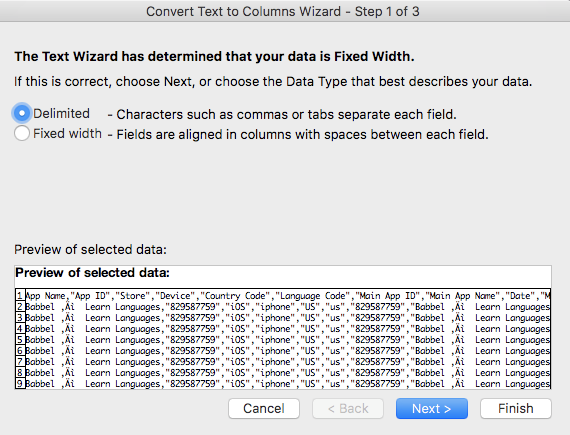
5. Select "comma" as a delimiter and click "Finish"
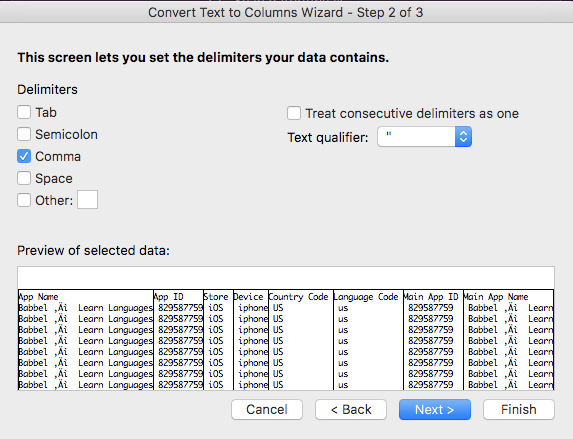
⚠️ If the content of a cell (for instance an app name, or description etc.) contains a comma, this can trigger a jump in columns.
Option 2 - Import CSV in Excel
Open a new excel file. In "File" go to "Import"
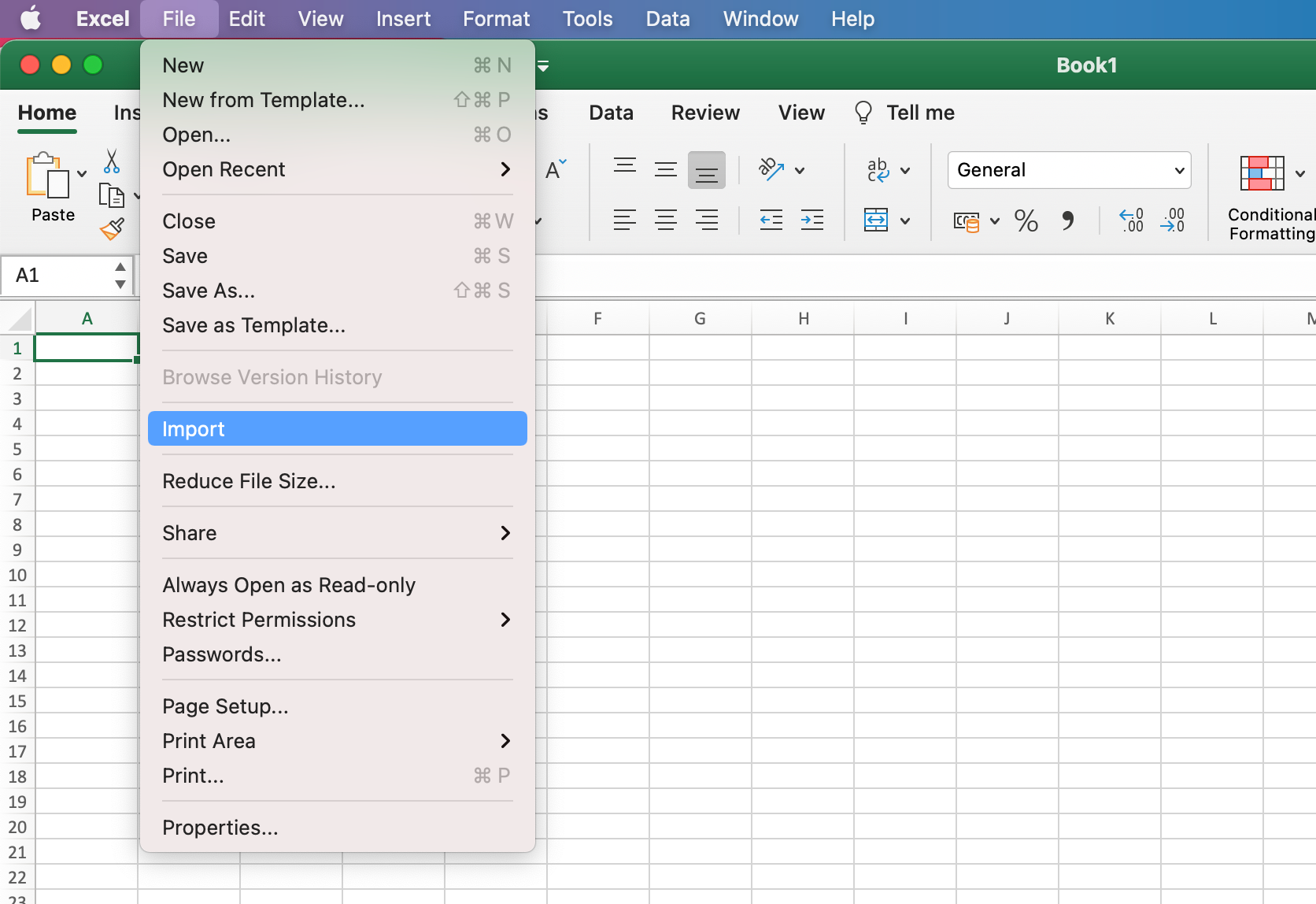
2. Select "CSV file" among the options
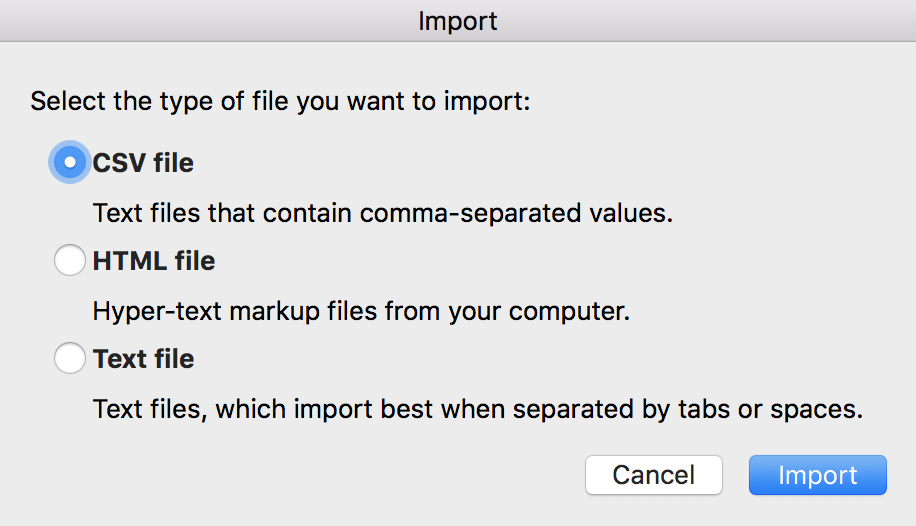
3. Select the CSV file you wish to import (the file you just exported from AppTweak)
4. Select the option "Delimited" in the Text Wizard
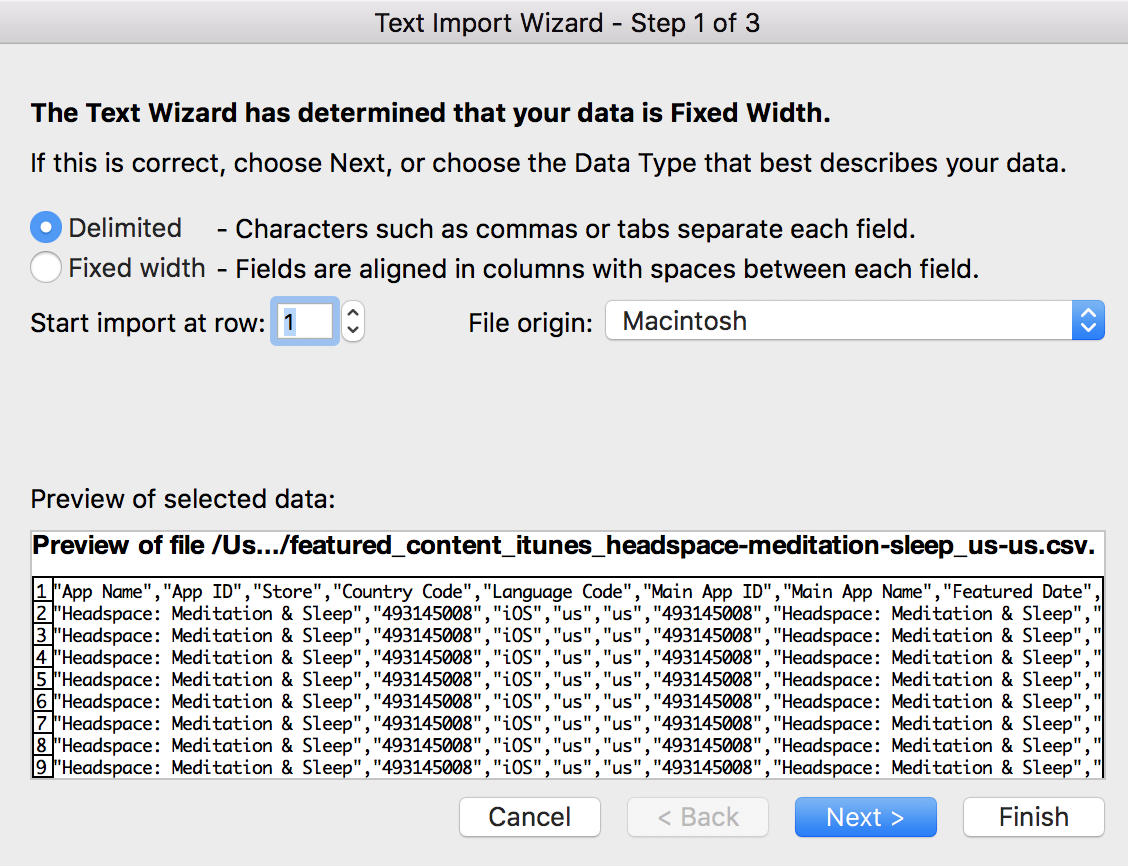
5. Select comma as delimiter and click on Finish
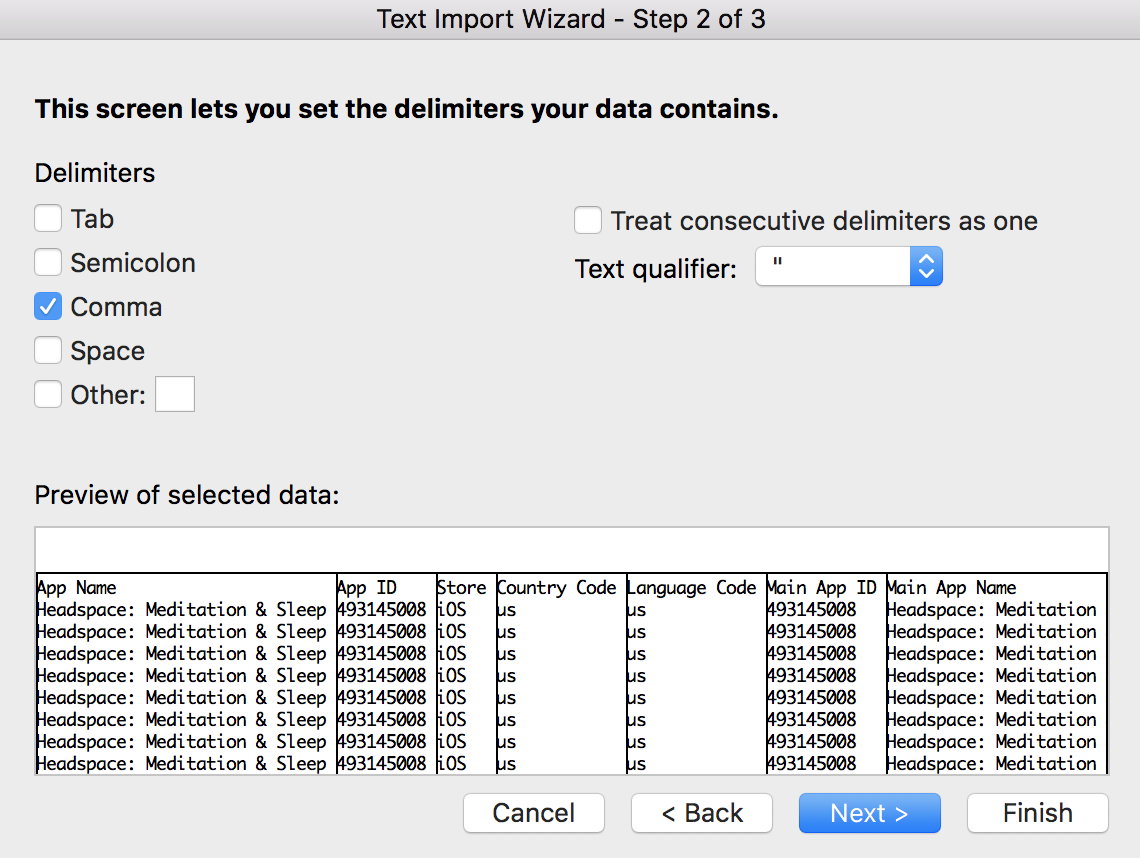
⚠️ If the content of a cell (for instance an app name, or description etc.) contains a comma, this can trigger a jump in columns.
Was this helpful?
Still need help? Share an idea